
Explore the Falco screenshot tour.
See how to review a configuration finding, investigate a security rule, and prepare a change. These screenshots use fictional Northstar Industries data. Select a workflow to read the explanation and expand the image; each step identifies the plan that includes it.
All plans
Identify checks that fail across multiple devices
Start with Critical Failed Checks to identify issues that affect several devices. Open a finding to see its explanation and remediation steps. Rule scores shown in this Enterprise example require the Enterprise plan.
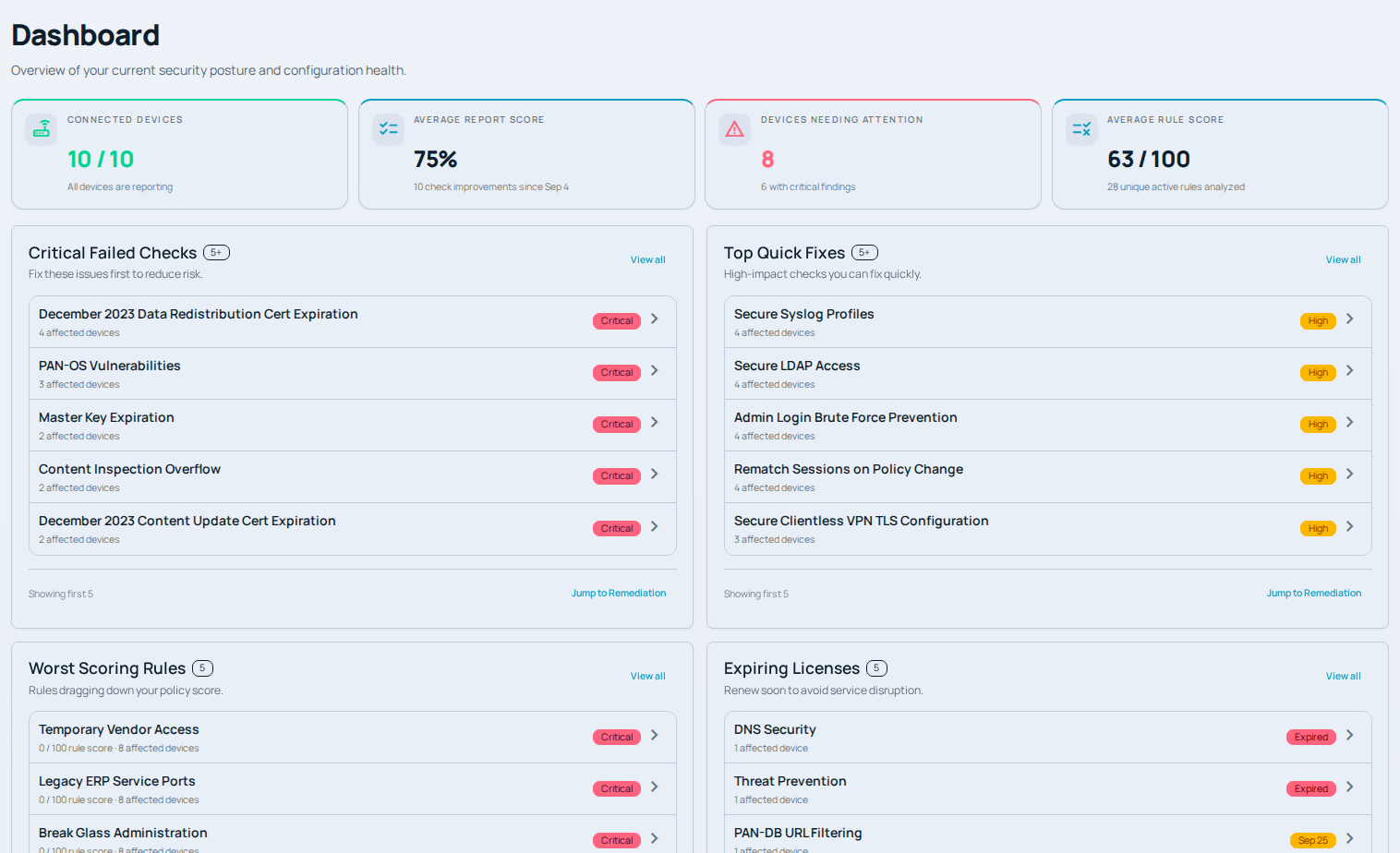
Fleet health, failed checks, and rule scores on the Falco dashboard.
All plans
Understand a finding before making a change
The report shows each check’s severity, affected devices, and explanation. The remediation section puts the next steps and relevant documentation alongside the result.
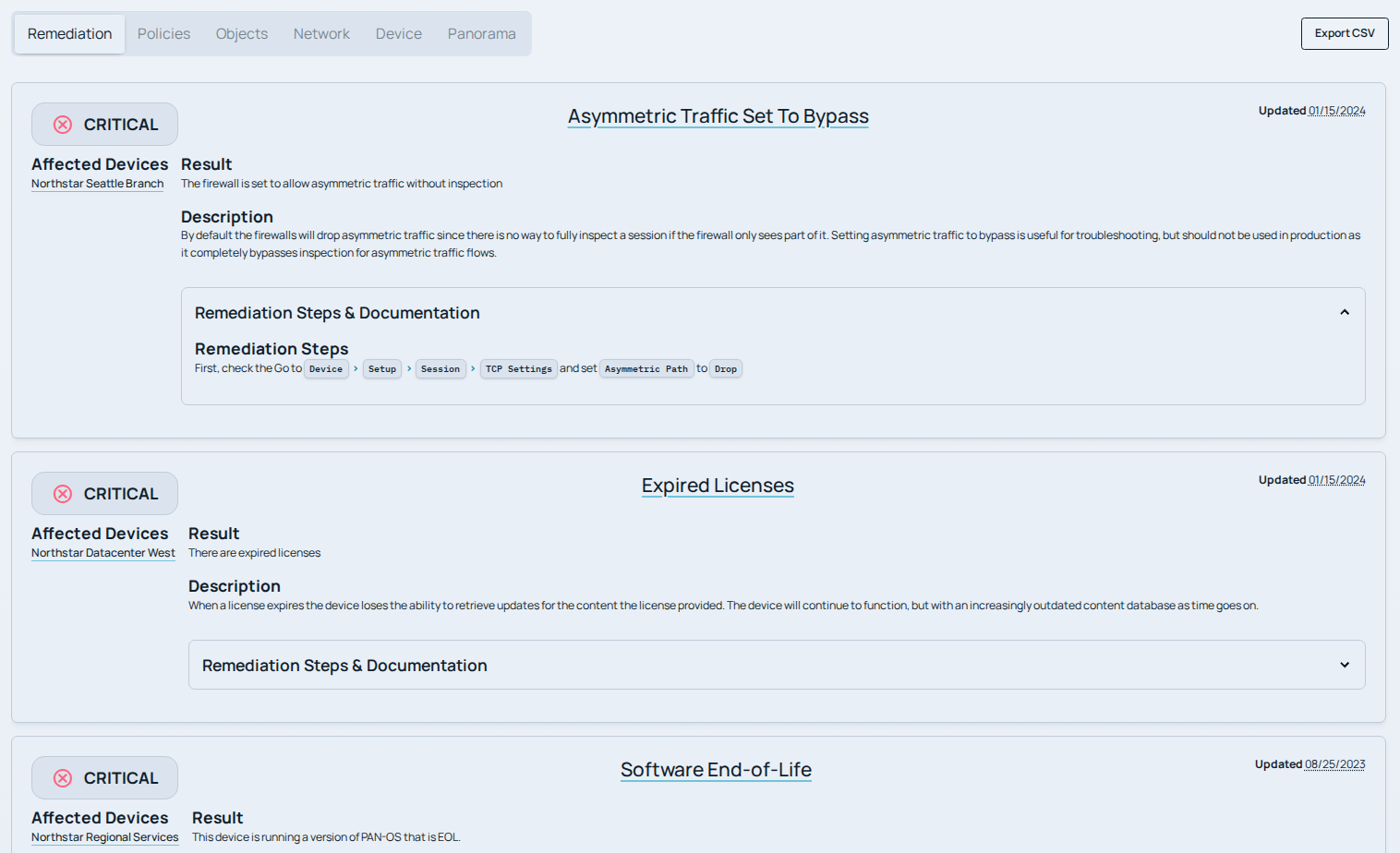
An asymmetric traffic finding with affected devices and remediation guidance.
All plans
Review advisories in the context of your fleet
Falco matches reported PAN-OS versions to advisories and shows severity, CVSS scores, and affected devices. Check another version before an upgrade. Version matches indicate potential exposure; review each advisory’s prerequisites and mitigations.
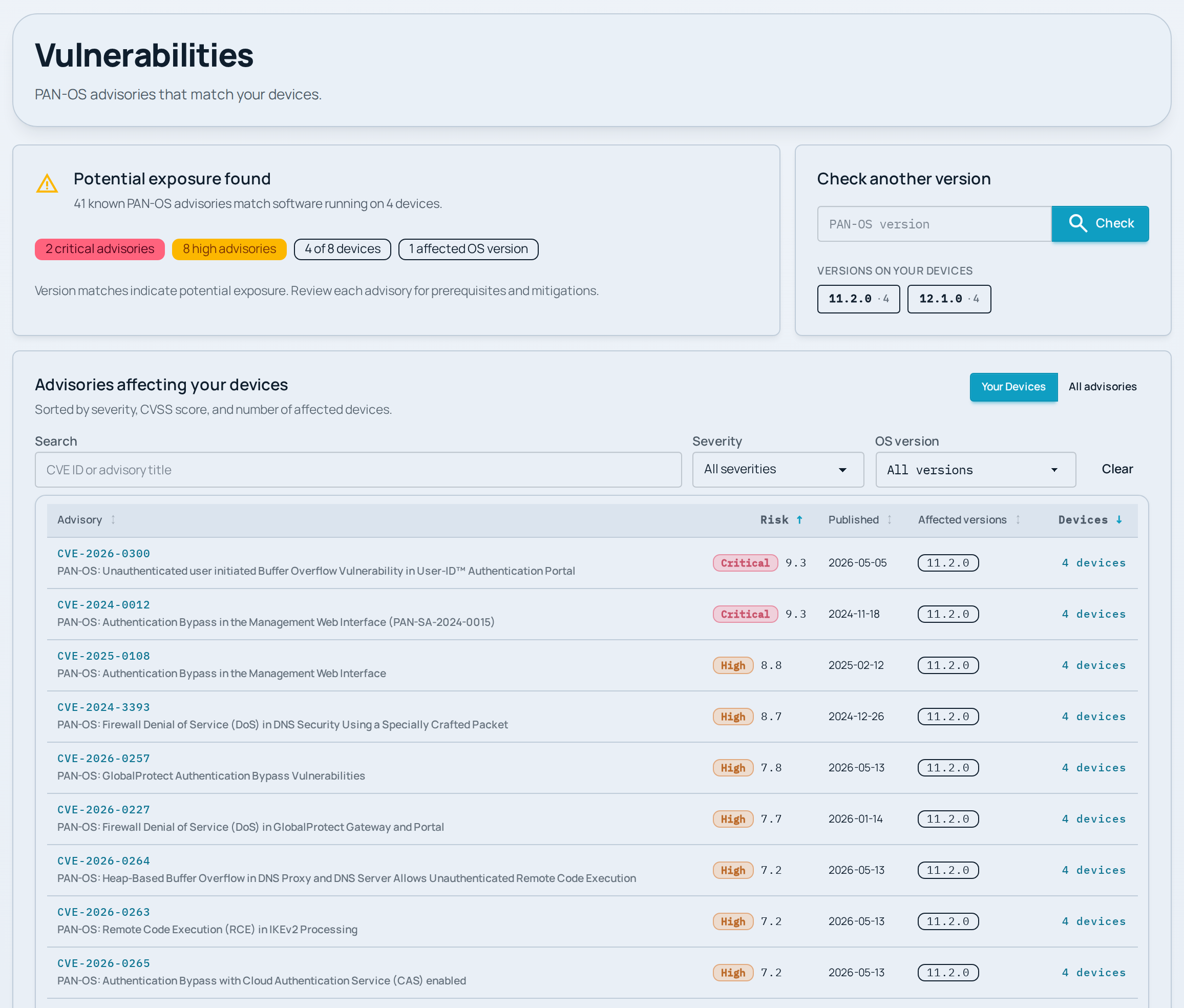
Advisories matched to the fictional Northstar fleet’s software versions.
Enterprise · Beta
See why a security rule needs attention
Compare rule scores and usage across devices, then inspect the reasons behind a score. This vendor access rule loses points for broad access and missing security controls. Higher scores mean fewer deductions.
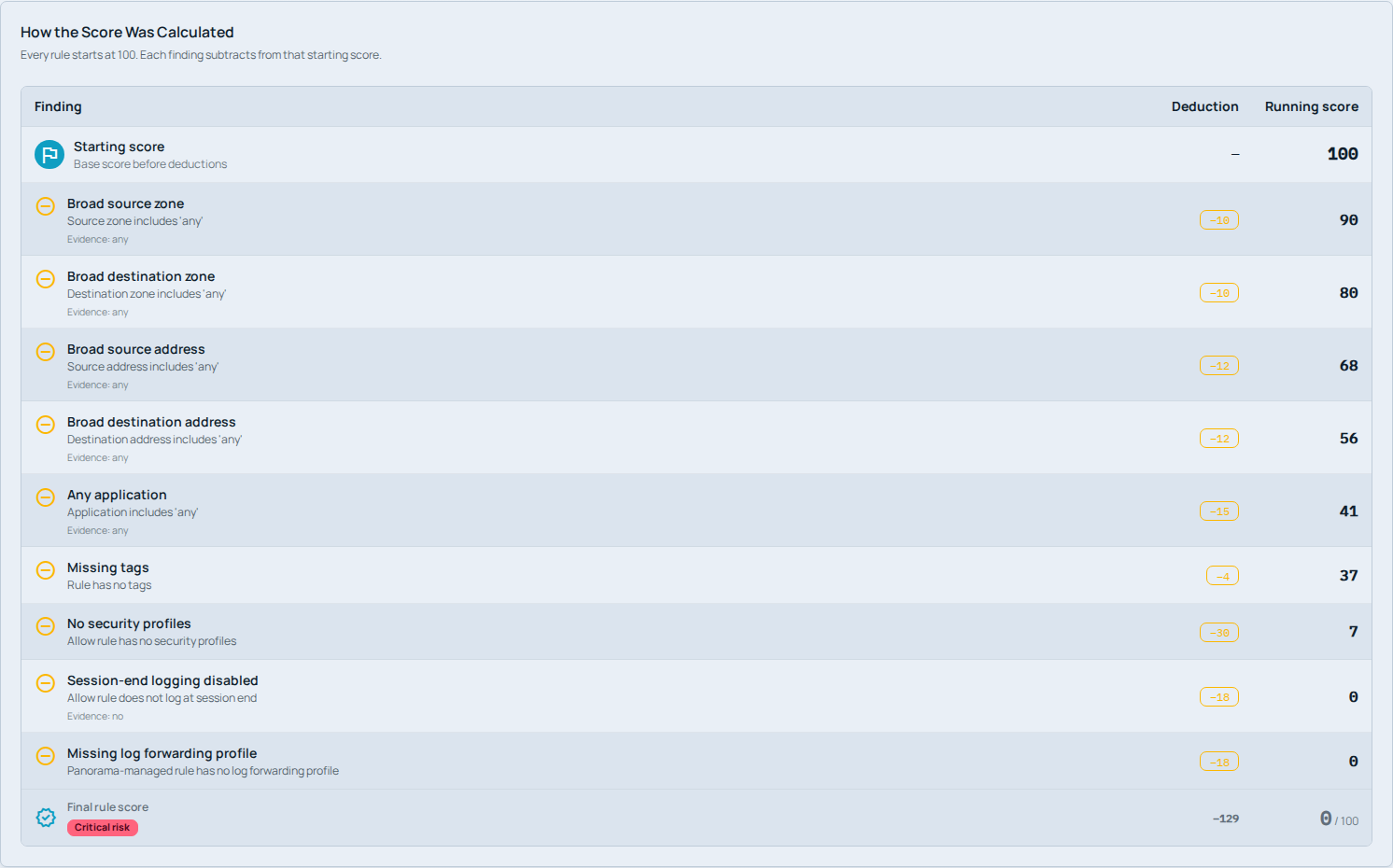
How Falco calculates the score for the demo’s Temporary Vendor Access rule.
Enterprise · Beta
Review a remediation plan before applying it
Select affected devices and let Falco resolve the configuration source, including Panorama templates and device groups. Review each proposed change before staging it. Playbooks leave the final PAN-OS commit or Panorama push to you.
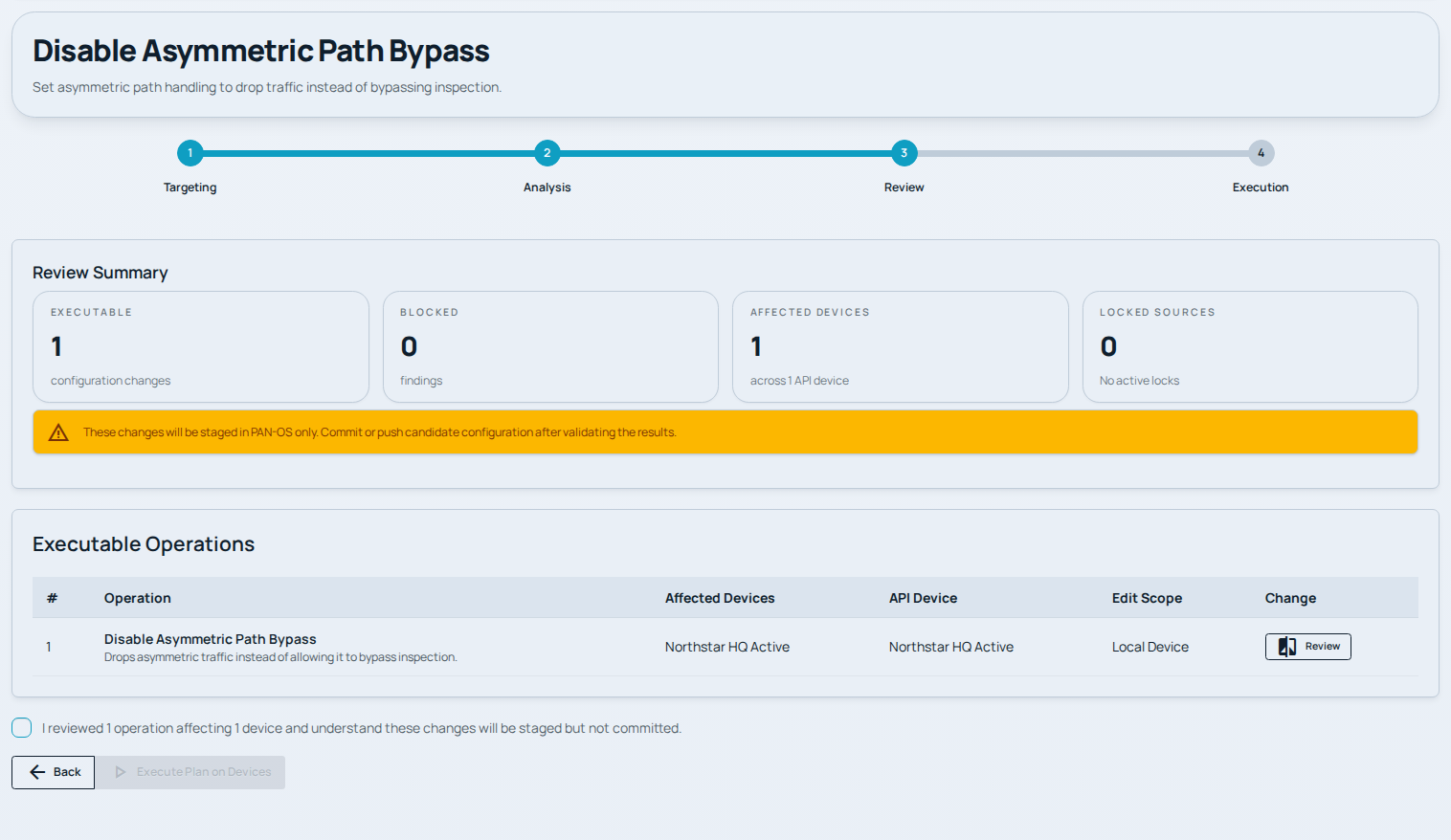
A Playbook review for asymmetric path handling, before any changes are staged.
Standard and Enterprise
Find and download an earlier configuration
Falco collects configuration backups hourly and keeps the last 100 versions per device by default. Open a device to download an earlier configuration. Enterprise also includes device-state backups.
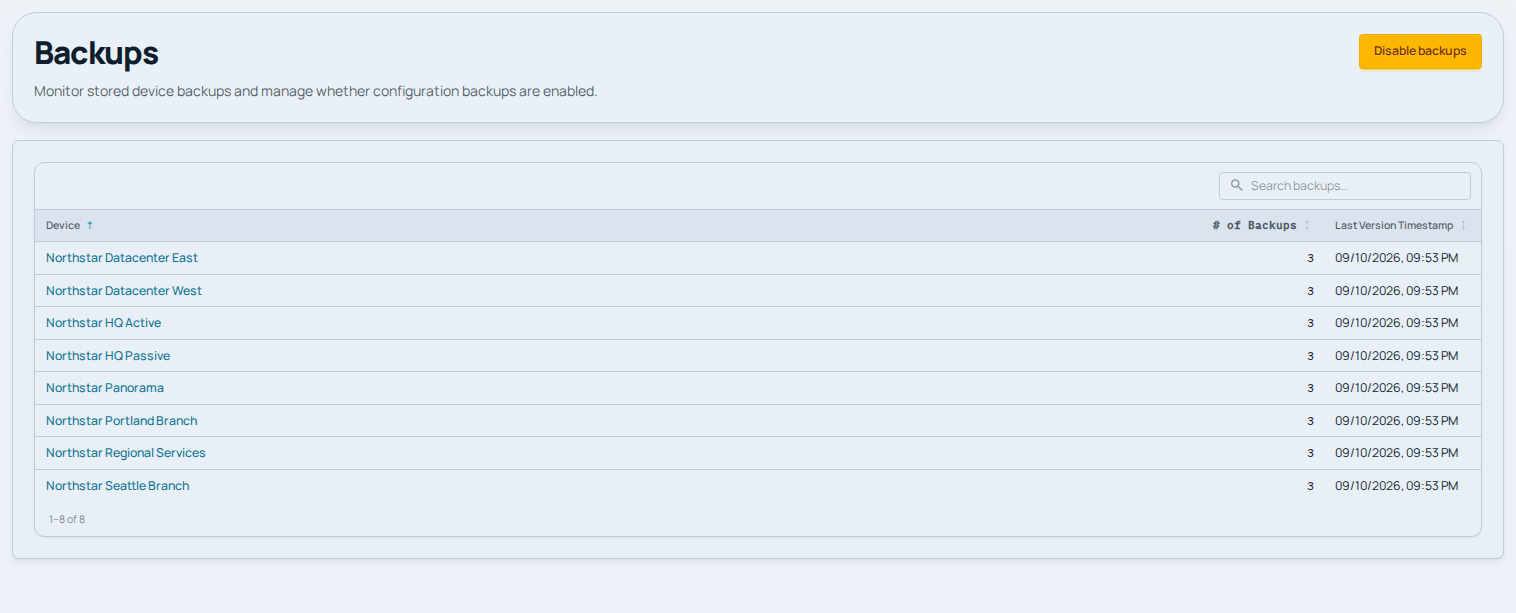
Stored configuration versions for the demo company’s firewalls and Panorama.
Enterprise
Run an operational command across selected devices
Command Center runs an operational command across selected devices. This Enterprise example collects interface information and shows each device’s status and response together.
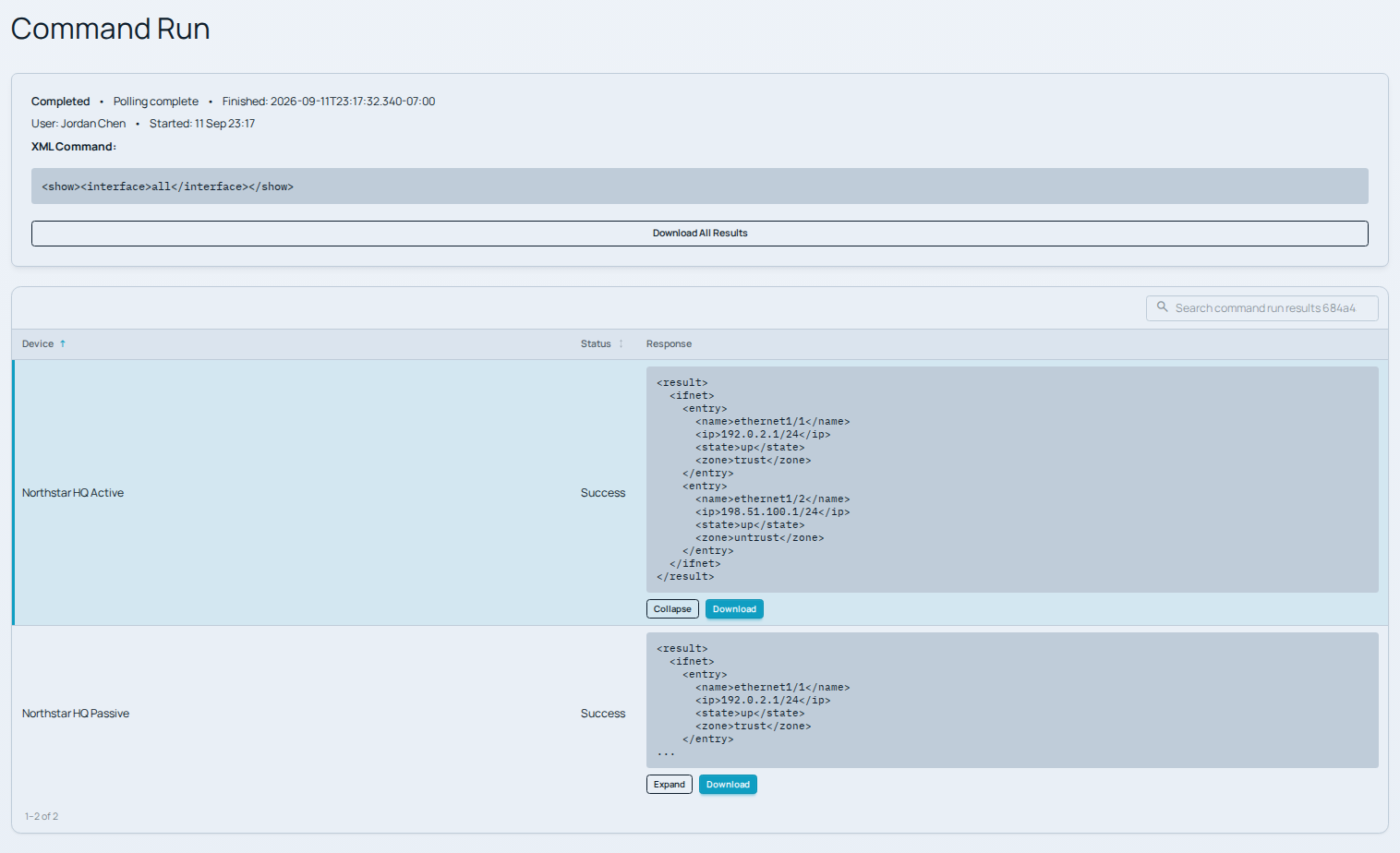
An interface query with results that can be reviewed or downloaded per device.
Enterprise
Use managed service lists in your firewall policies
External Dynamic Lists (EDLs) let firewall policies reference lists that update as service addresses or domains change. Find a list by provider, service, tag, or type. Auto-install stages the list, authentication, and certificate settings for your review; your team commits and, when needed, pushes the configuration.
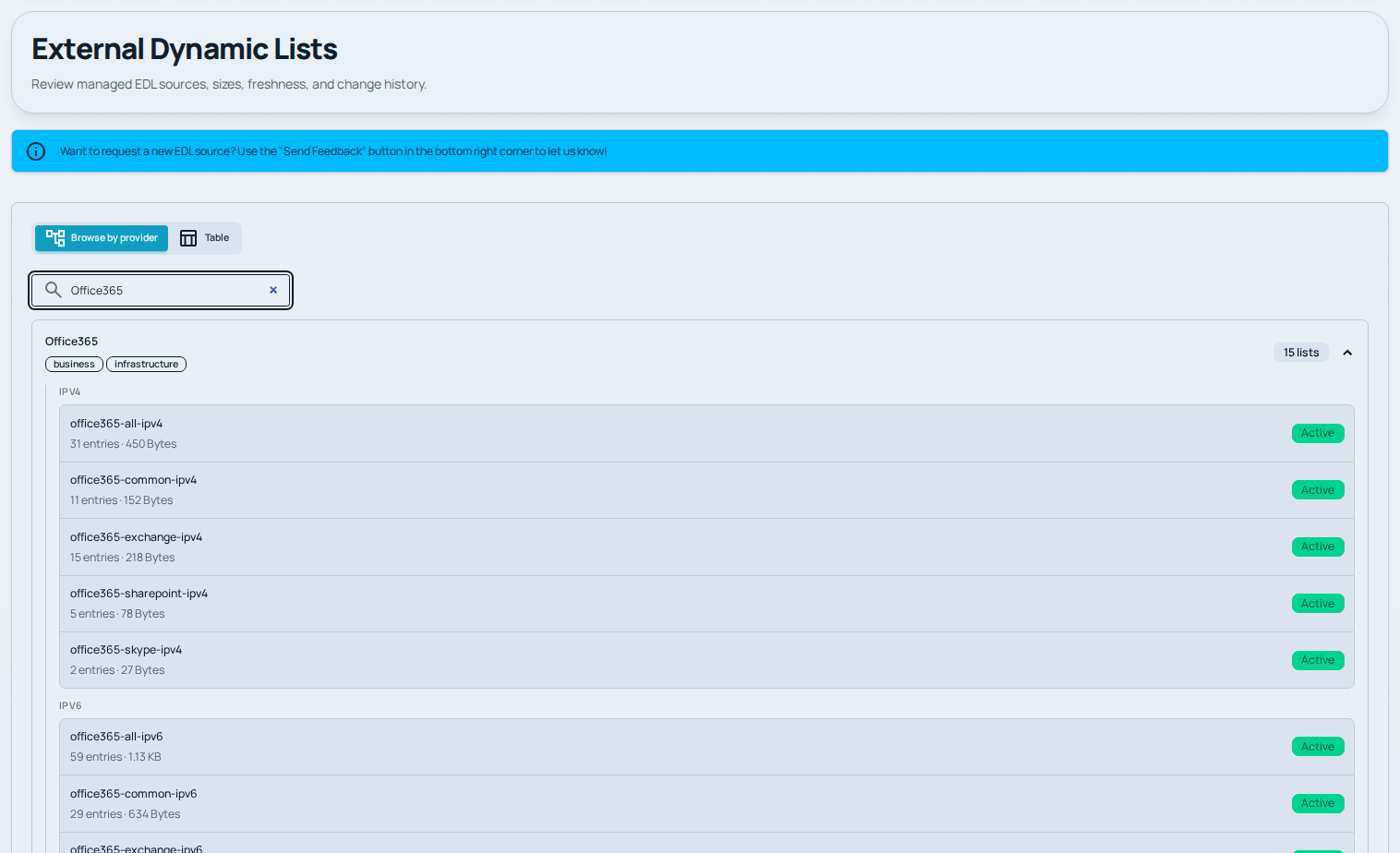
Provider lists with their types, entry counts, and availability.
See findings from your own configuration.
Sign up for free Falco Lite and connect a firewall or Panorama. Your first audit and subsequent monthly audits are free.
Get your free audit